
How Booking Slot works
Four steps to set up, then a booking is a normal Shopify order with a time attached. This is the whole flow, from linking your first product to marking the customer completed at the till.
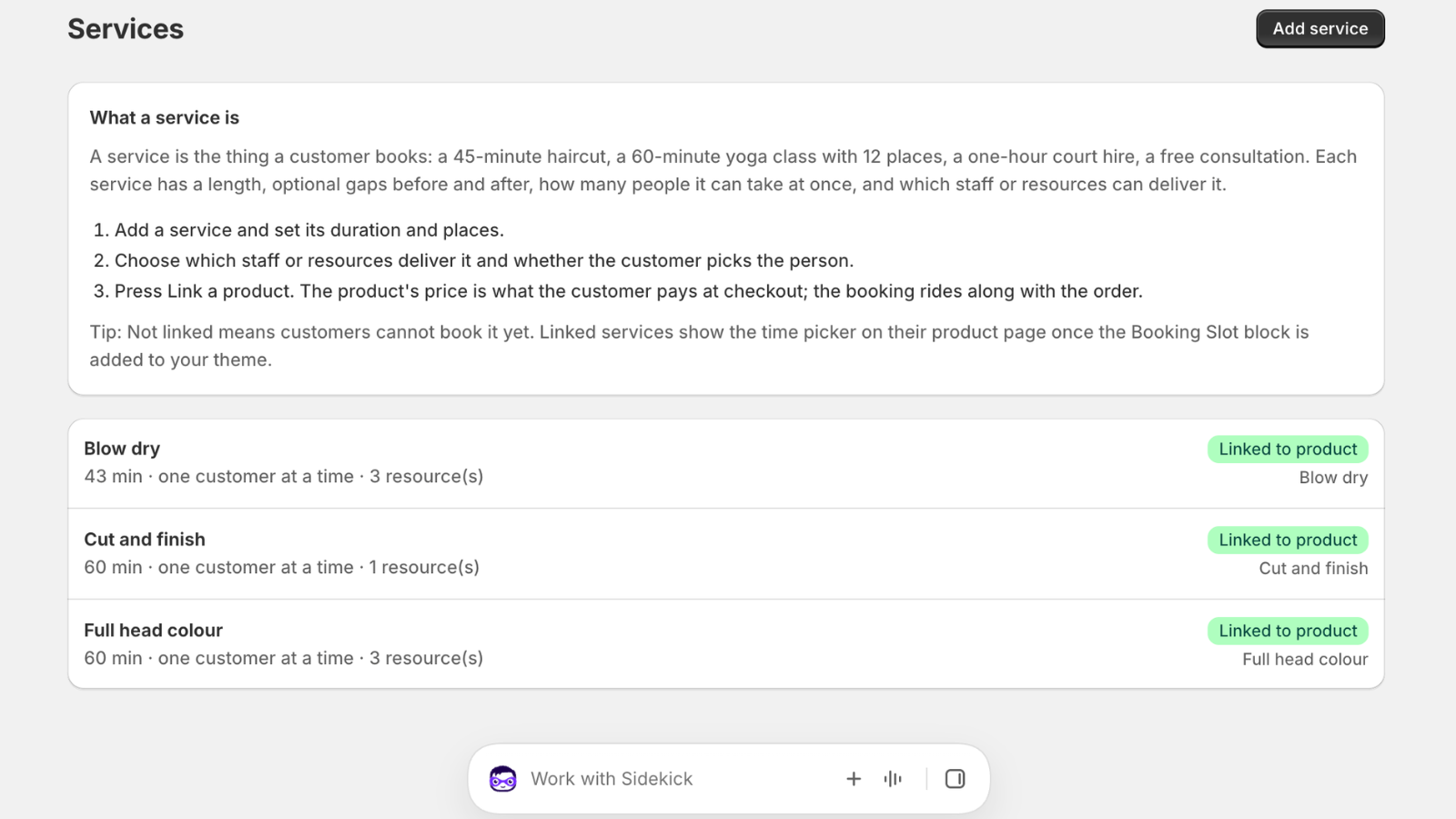
Create a service
A service is the thing a customer books: a cut and finish, a treatment, a class, an hour on court two. Give it a duration, a buffer for clean-down or travel, a capacity if it is a group session, how far ahead people can book and how much notice they must give.
Pick a preset first and the defaults are filled in for your trade: buffers where clean-down is normal, hourly intervals for courts, capacity for classes, turnaround after every hire. Presets only set starting values, so change anything you like afterwards.
On Starter and above, set a deposit rule here too, as a fixed amount or a percentage of the price.
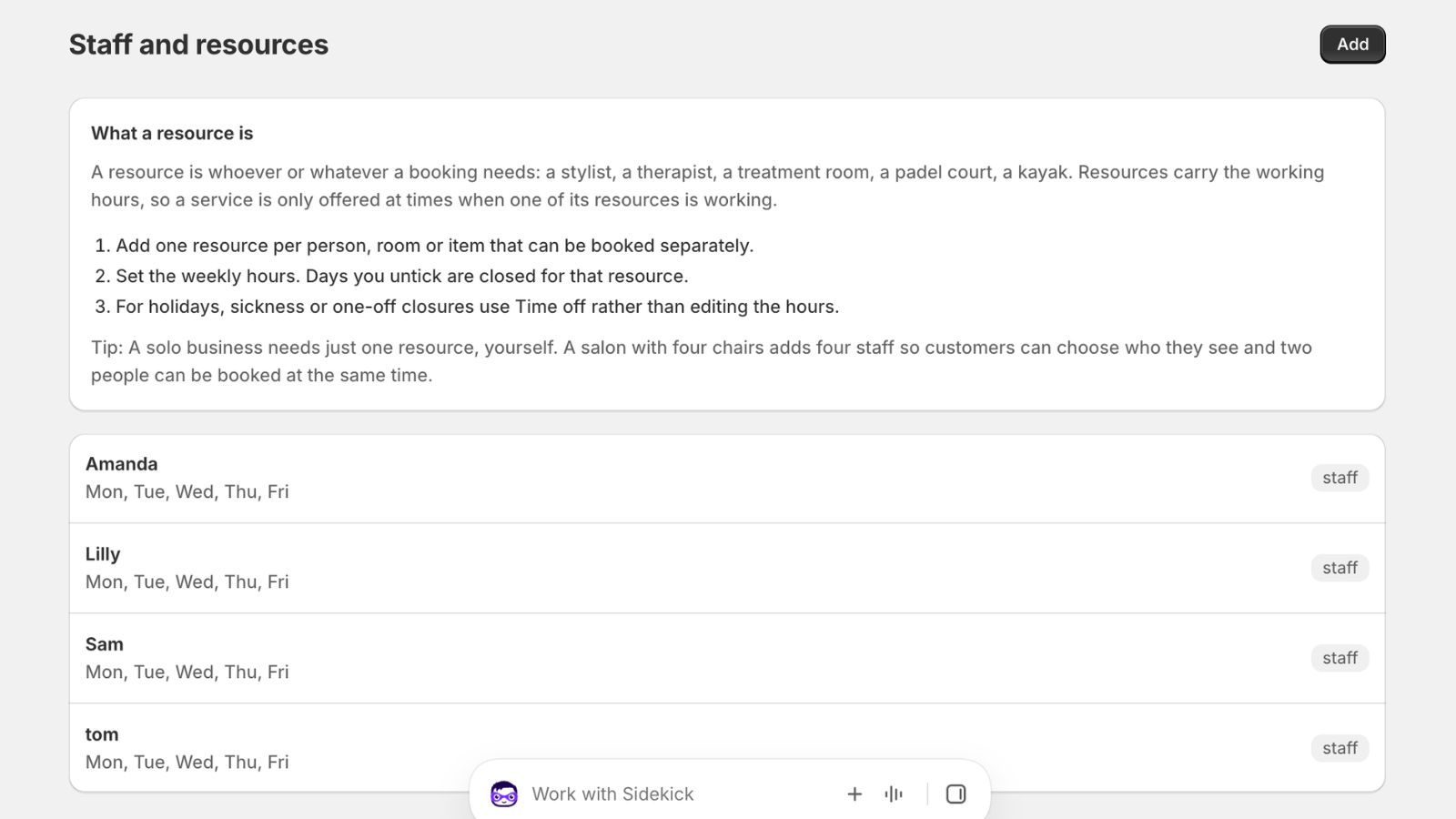
Add staff or resources
Anything with its own calendar is a resource: a stylist, a practitioner, a treatment room, a chair, a court, a bike. Give each one weekly hours, including split shifts and alternate weeks, and block out holidays, training days or a standing lunch as time off. Time off blocks that resource only.
Attach each resource to the services it can deliver. A barber who does not do beard work is never offered for it, and a treatment that needs both a practitioner and a room is only offered when both are free.
On Growth and Pro, each person can connect their own Google Calendar, so busy periods in their own diary come off the website automatically.
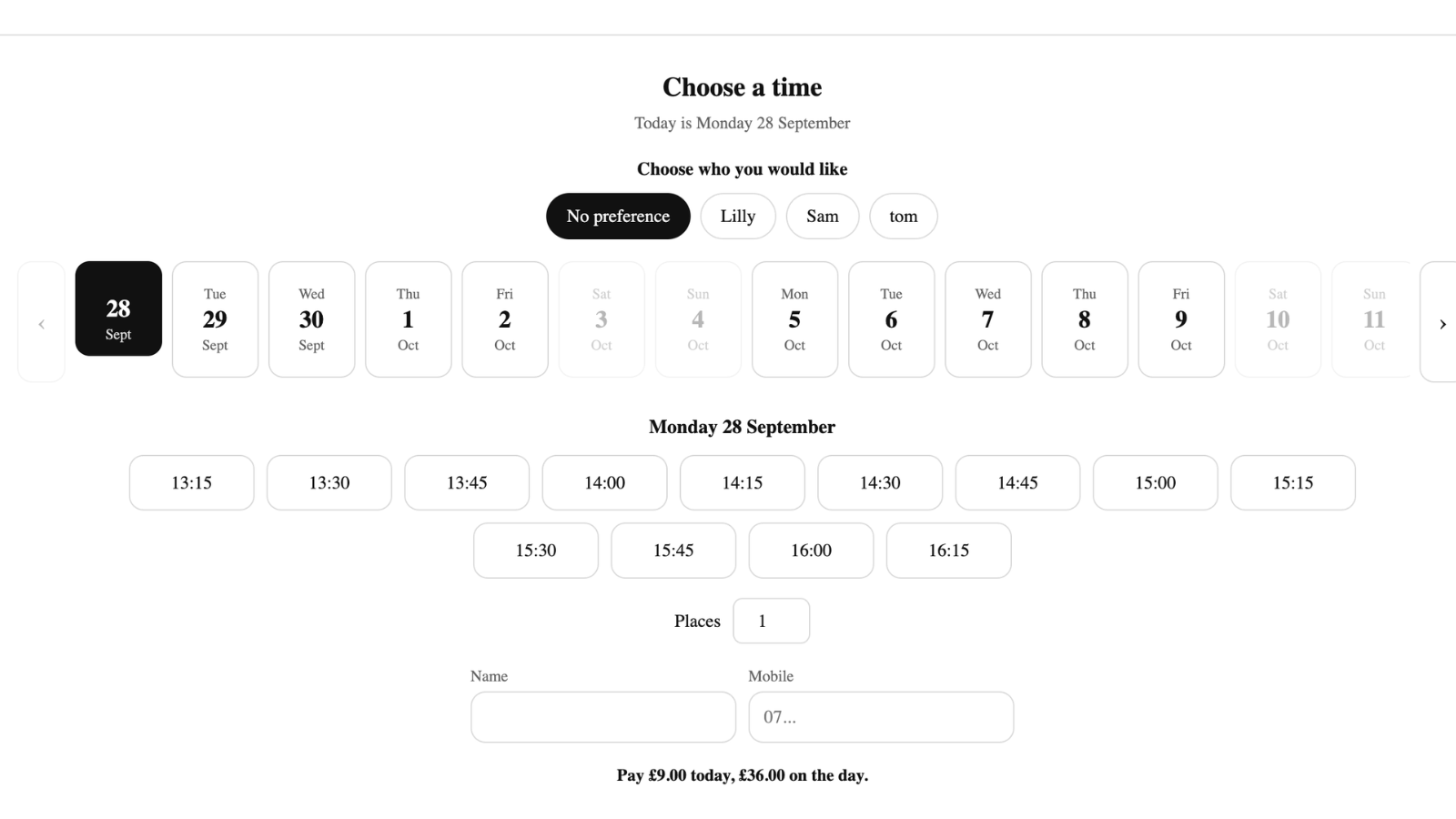
Link a product
Choose the Shopify product customers buy for this service. The picker then appears on that product page, above the normal add to cart button, and nowhere else. Retail products are untouched.
The picker is a theme app extension block, so it adds itself to the product template on Online Store 2.0 themes without editing your theme code. If your theme hides app blocks, add it once in the theme editor. Price the product as you would any other, with variants for durations, tiers or adult and child places.
Link one product to start. Take a test booking through checkout, refund it, and watch the slot come back. Then link the rest.
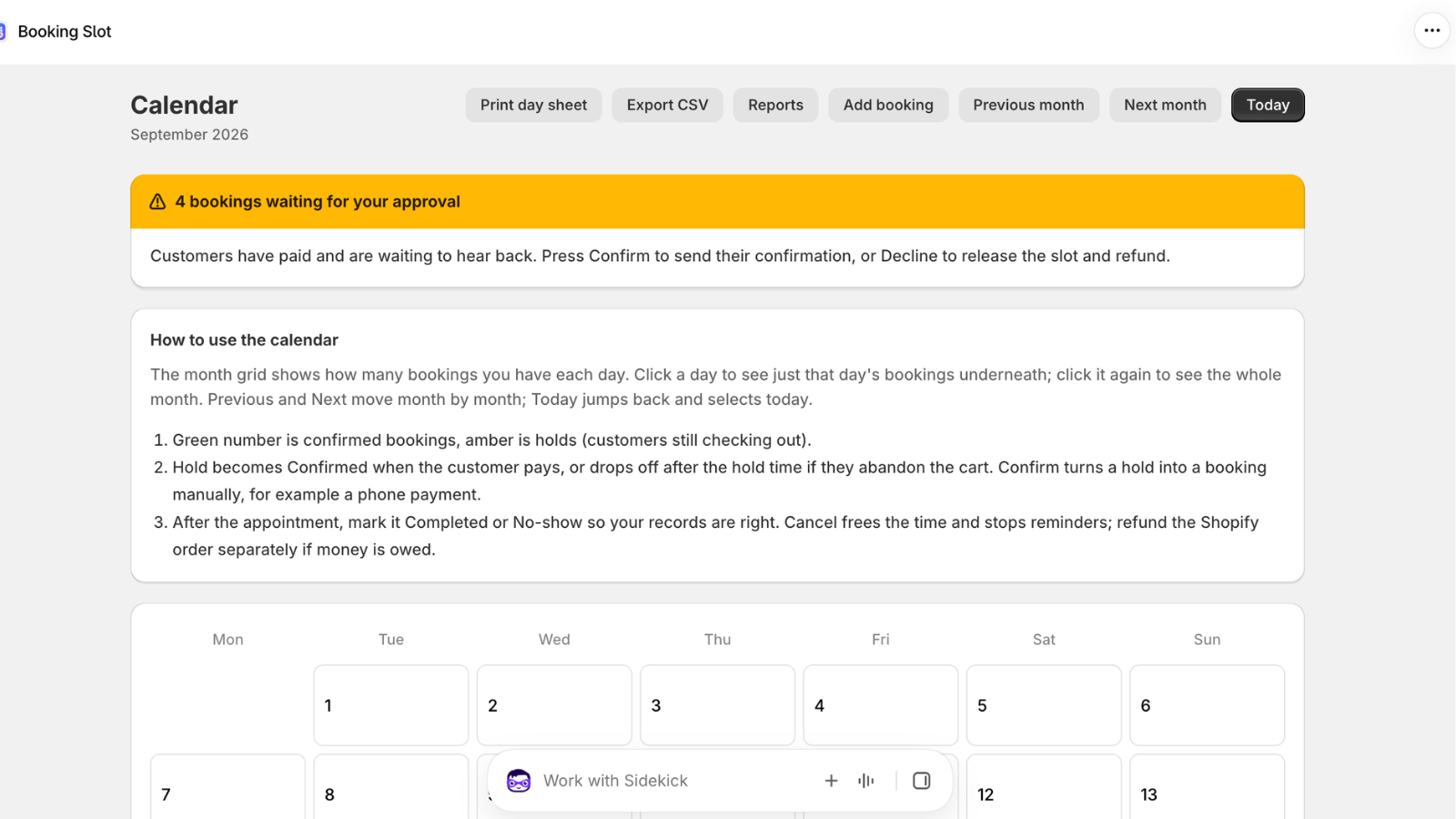
Take bookings
Customers choose a date, a time and a member of staff, add to cart and pay through your normal checkout. Payment confirms the booking. Cancelling or refunding the order releases the slot.
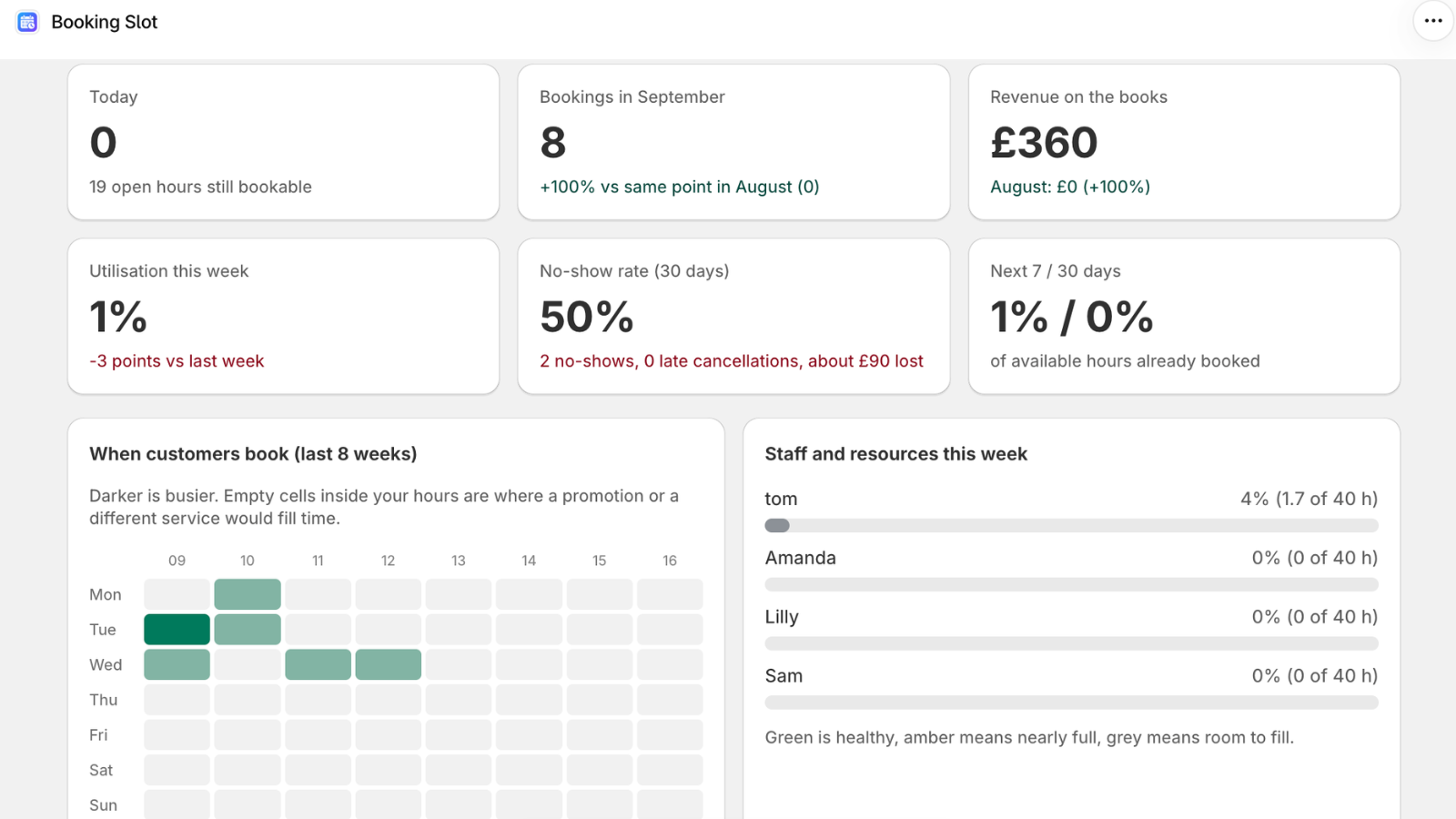
The Calendar is your diary: a month grid with per-day counts and the day list underneath. Mark bookings completed or no-show, cancel, reschedule or move them to another person from that one screen.
Confirmations go out by email on every plan and by SMS on paid plans, with a reminder before the appointment and a link the customer uses to move or cancel within your cutoff.
What happens behind a booking
From the customer opening a product page to the slot being released if they walk away.
- The customer opens a linked product. The picker asks the server which times are free, worked out fresh from each resource's hours, time off and existing bookings. Nothing is read from a cached timetable.
- They pick a time. A hold is created inside a database transaction. If two people choose the same slot in the same second, exactly one succeeds and the other is told immediately and shown the next time.
- They add to cart and check out. The date, time and staff member travel with the line, and Shopify takes payment with whatever methods you already offer.
- Payment confirms the booking. The hold becomes a confirmed booking, the confirmation goes out, and the order sits in Shopify like any other.
- If they abandon the basket, the hold expires on its own. The slot returns to the picker and nobody has to do anything.
- Before the appointment, the reminder goes out with a manage link. Move or cancel within your cutoff and the slot is back on sale while there is still time to fill it.
- On the day, the Calendar shows who is in. Mark completed or no-show, settle a balance if a deposit was taken, and the order and the booking stay tied together.
- Cancel or refund the order in Shopify at any point and the slot is released automatically.
At the till
Booking at the counter uses a Booking Slot tile on your Shopify POS smart grid. It calls the same availability and creates the same hold as the product page, in the same second, with no sync step, so a walk-in cannot take a slot the website is mid-checkout on, and the reverse is equally true.
Several bookings go through one POS transaction. Completing the sale confirms them exactly as an online checkout does, and a deposit taken at the till follows the same balance flow. If the network drops, the till shows an error rather than guessing from a cached list.
POS booking is on Growth and Pro and works with POS Lite and POS Pro, so no Shopify plan upgrade is needed.
Rescheduling, cover and refunds
Move a booking to a new time or a different person from the Calendar. Availability is checked before the move goes through, and the original Shopify order is untouched, so nobody is refunded and re-charged to shift an appointment by an hour.
Refunds are yours, under your own policy, and happen in Shopify. The app does not hold money and does not apply a cancellation policy of its own. What it enforces is the reschedule cutoff you set.
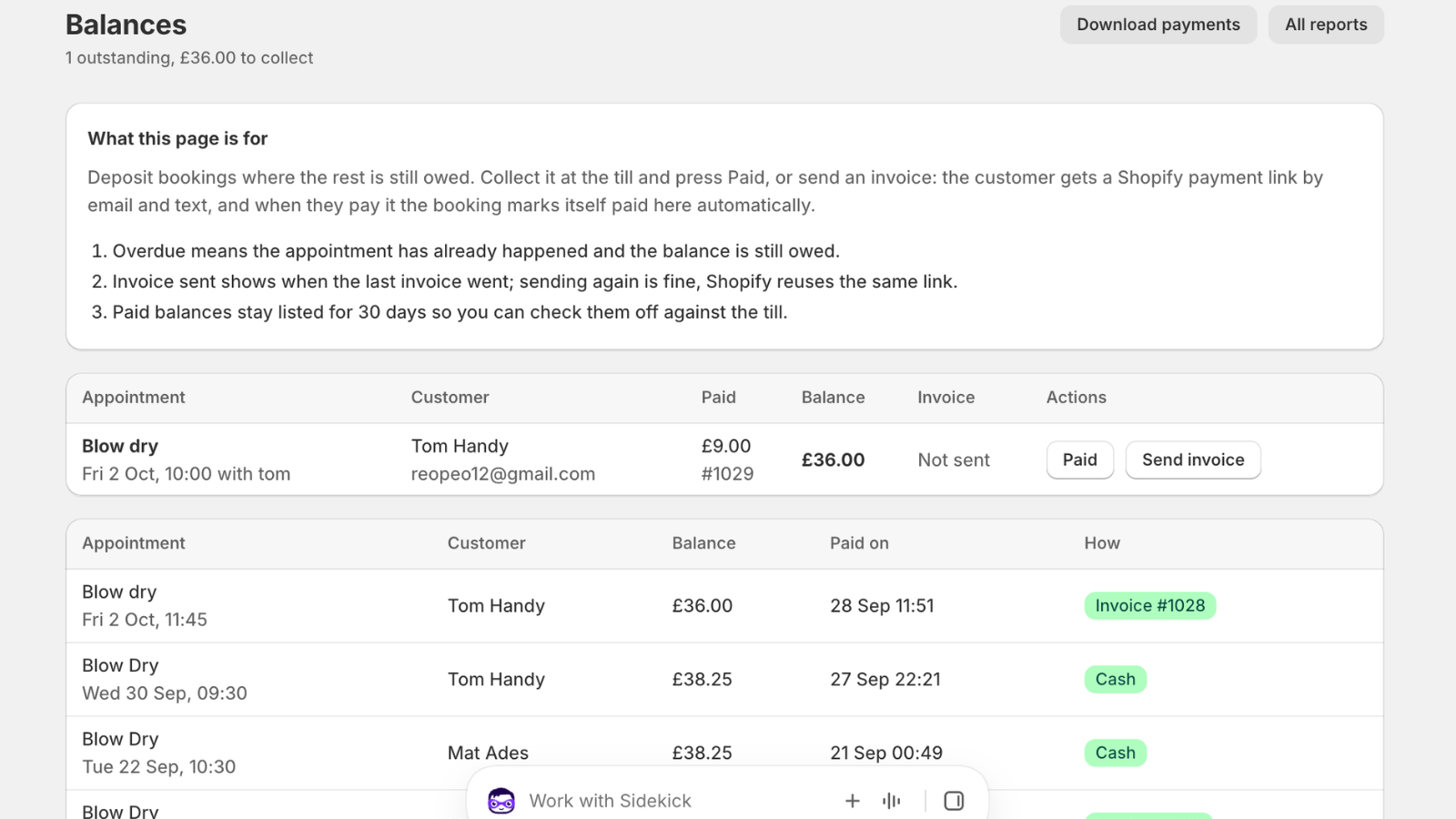
Deposits and balances: the deposit is a line in your normal checkout, the balance is tracked on the booking and settled at the till or by a Shopify payment link, and the Balances screen lists everything still owed.
How long it takes
Setup is a checklist on the Calendar page that stays there until each step is done.
One person, one service
Under an hour, including the test booking. Most of it is deciding your hours and your cutoff.
A salon with six stylists
About half a day, most of it typing in each person's real hours, including their day off and alternate Saturdays.
Switching from another app
Install alongside, link one quiet product, test it, then move products one at a time. Keep the old app until its last booking has passed.
Questions about how it works
Do I need to change my theme?
No. The picker is a theme app extension block, so on Online Store 2.0 themes it adds itself to the product template of linked products without editing your theme code. If your theme hides app blocks by default, add the block once in the theme editor. Uninstalling removes it cleanly.
What confirms a booking?
Payment at Shopify checkout. The hold a customer takes when they pick a time becomes a confirmed booking the moment the order is paid, and the confirmation goes out. If you would rather confirm bookings by hand, switch on approval for that service and requests arrive in the Calendar for you to accept or decline.
What happens if a customer abandons the basket?
The hold expires on its own and the slot goes back into the picker. Nobody has to do anything. Holds last the length of the checkout, which is what stops a second customer taking the same slot while the first is entering card details, and no longer, so abandoned carts never block out your afternoon.
What does the customer receive?
A confirmation when the booking is made and a reminder before the appointment, by email on every plan and by SMS on paid plans. Both carry a link to the booking so the customer can move or cancel themselves within your cutoff. The templates are yours to edit in Settings.
Can I move a booking without refunding it?
Yes. Reschedule from the Calendar, or move it to another member of staff, and the original Shopify order stays exactly as it is. Availability is checked before the move goes through, so you cannot land a booking on someone who is already busy or on holiday.
Does it work with Shopify POS?
Yes, on Growth and Pro, with POS Lite or POS Pro. The POS tile calls the same availability and creates the same hold as the product page, in the same second, so the counter and the website cannot sell the same slot. Several bookings can go through one transaction.
How do I test it before going live?
Link one product and put a booking through checkout yourself: on a development store with the Bogus Gateway, or on a live store with a real card that you then refund. Check the booking appears in the Calendar at the time you picked and that refunding released the slot. Then open the same product in two browser windows and take the same slot in both. One should succeed and one should be refused on the spot.
How long does setup take?
One service and one person is under an hour, including the test booking. A salon with six stylists and a dozen services is about half a day, most of it typing in each person's real hours. The Calendar page carries a four-step checklist until each step is done.
Link one product and take a test booking today
Free for one resource and 20 bookings a month, with every scheduling rule on from the first booking.