
How to add appointment booking to your Shopify store
Shopify does not take appointments on its own. You need a product that represents the service, a booking app that adds a date and time picker to it, and a way for payment to confirm the slot. Here is the whole flow, with Booking Slot as the example.
Step by step
Create the product
Add a product for the service, for example Cut and finish, 60 minutes, with a price. It can be in a collection like any other product.
Install a booking app
From the Shopify App Store install Booking Slot. Approve the permissions for products, orders and customers.
Create a service and staff
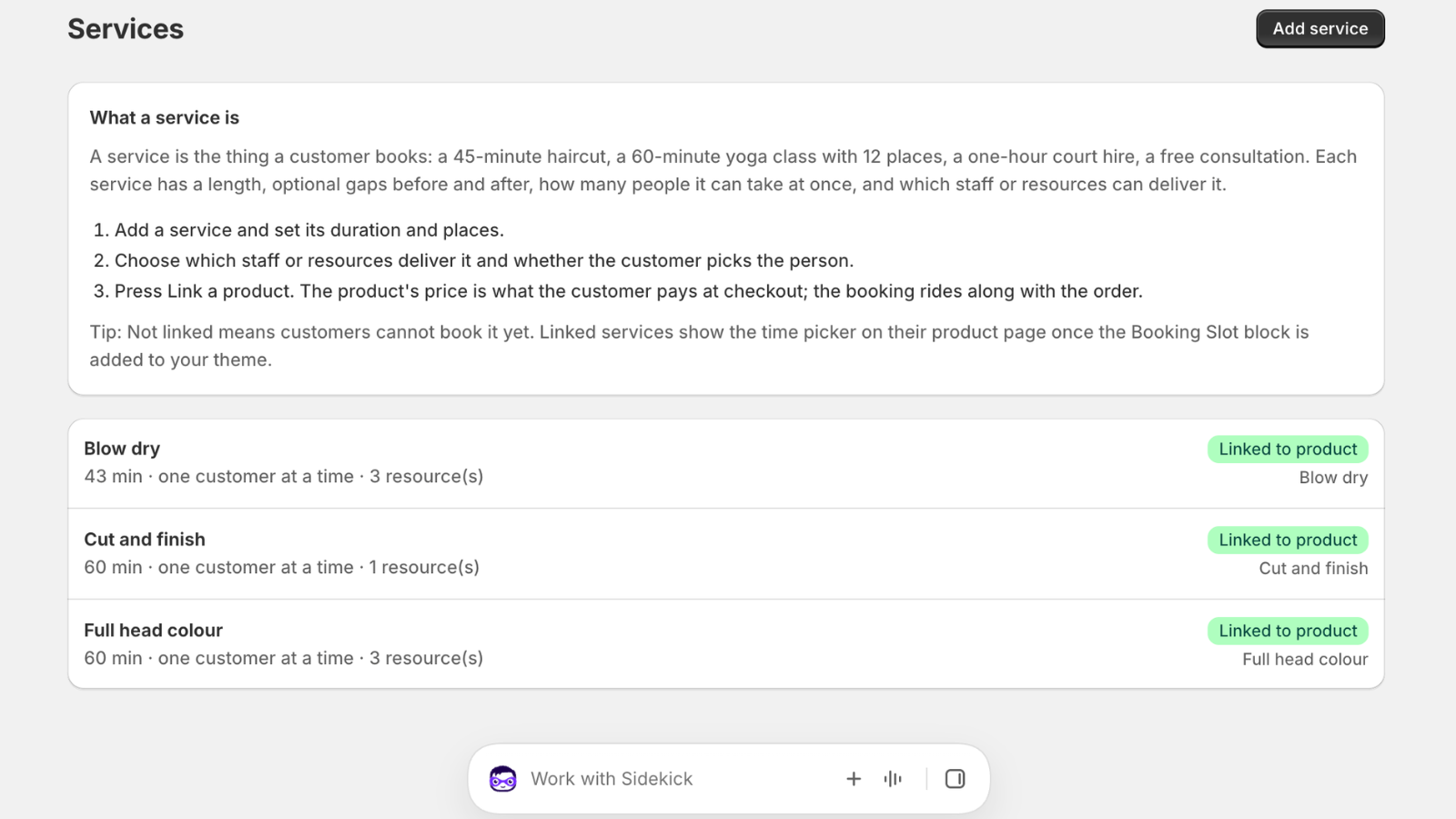
In the app, create the service with duration and buffer, then add staff or resources with hours and time off.
Link the product
Pick the Shopify product on the service. This tells the picker where to appear.
Check the theme block
On Online Store 2.0 themes the picker block appears automatically on linked products. If your theme hides app blocks, add it in the theme editor.
Test a booking
Use Shopify's Bogus Gateway on a development store or a real card and refund. Confirm the booking shows in the Calendar.
What Shopify gives you, and what it does not
Shopify is a shop. It knows about products, stock, carts, payments, customers and orders. What it has no concept of at all is time: there is no way to tell it that a product can only be bought for two o'clock on Thursday, and only by one person.
That gap is the whole job of a booking app. It adds three things Shopify lacks. A calendar, so the app knows who or what is free when. A picker on the product page, so the customer chooses a time before they add to cart. And a link between the resulting order and that slot, so payment confirms the booking and a refund releases it.
Everything else you already have. Checkout, discount codes, gift cards, customer accounts, tax, email receipts and reporting all keep working, because a booked service is still a normal Shopify product underneath.
Modelling your services as products
Spend ten minutes on this before installing anything, because it decides how much configuration you do later.
One product per thing a customer buys. A cut and finish is a product. A sixty-minute massage is a product. If the same service comes in two lengths, that is usually one product with two variants rather than two products. If two services have different staff or different durations, they are two products.
Price them as you would any product, including tax. If you want a deposit rather than the full amount, you still set the full price here and configure the deposit rule in the booking app, so the customer sees the real price and pays part of it.
- One product per bookable service
- Variants for durations, tiers, or adult and child places
- Full price on the product, deposit rules in the app
- Keep retail products exactly as they are; the picker will not touch them
The part people get wrong: testing before you go live
The single most common support message any booking app gets is from a merchant whose first real customer hit a problem, because the merchant never put a booking through themselves.
Test it properly. On a development store, turn on Shopify's Bogus Gateway and book a slot end to end. On a live store, book one yourself with a real card and refund it; the few pence in fees is worth it. Either way, check four things afterwards: the booking appears in the app's Calendar, the time on it is the time you picked, the confirmation email arrived, and refunding the order released the slot back into availability.
Then try to break it. Open the same product in two browser windows and take the same slot in both. One should succeed and the other should be told immediately that the time has gone. If both succeed you have a booking app that checks conflicts after the sale rather than before it, and you will find out the hard way on a Saturday.
How long this actually takes
For one service and one member of staff, under an hour including the test booking. For a salon with six stylists and twelve services, half a day, most of which is typing in each person's working hours.
The things that add time are the ones worth getting right first: each person's real hours including their day off, the buffers on services that need clean-down, and how far ahead you want people to be able to book. Set those once and the picker is correct from the first customer.
Questions about how to add appointment booking to Shopify
Do I need a particular Shopify plan to take appointments?
Any Shopify plan works, including Basic. The booking app runs as a theme app extension and a set of admin pages, neither of which depends on your Shopify tier. The one thing to check is Shopify POS: booking at the till works on both POS Lite and POS Pro, so again no upgrade is needed. If you are starting from nothing, Shopify Basic plus a booking app's free plan is one of the cheapest ways to get a service business selling online.
Will adding a booking picker break my theme?
No. On Online Store 2.0 themes the picker is a theme app extension, which means it adds one block to the product template rather than editing your theme's code. It renders only on the products you have linked to a service, so your retail products are completely untouched. If your theme is set to hide app blocks by default, you add the block once in the theme editor and it appears from then on. Uninstalling the app removes the block cleanly, with nothing left behind in your theme files.
Can customers book without paying at checkout?
Yes, by switching on approval. The customer picks a slot and it arrives in your Calendar as a pending request rather than a confirmed booking, and you accept or decline it, taking payment in person. Left switched off, which is the default, payment at Shopify checkout is what confirms the booking. The default is the safer one for most shops: a free booking with no payment and no verification step attracts bot spam, which is why approval exists as the filter when you genuinely want unpaid bookings.
How long does setup actually take?
For one service and one member of staff, under an hour including a test booking. For a salon with six stylists and a dozen services, budget half a day, and most of that is typing in each person's real working hours. The things worth slowing down for are the ones that are expensive to discover later: each person's actual hours including their day off, buffers on the services that need clean-down time, and how far ahead you want customers to be able to book. Set those properly once and the picker is correct from your first real customer.
Try Booking Slot free on your store
Install in a few minutes, link one product and take a test booking. Free for one resource and 20 bookings a month, then flat pricing from £14.99.